
What does this project do?
We build a traffic light that works just like the ones at real crossings. Cars get red–yellow–green lights, pedestrians get red–green lights. When a pedestrian presses the button, the car light turns yellow, then red, and pedestrians are allowed to cross. Even if nobody presses the button, the lights change on their own at set intervals.
- Age group: 9 and up
- Level: Beginner
- Time: About 40 minutes
- What you will learn: turning LEDs on and off, reading a button, measuring time with
millis(), writing a function
Parts list
| Part | Qty |
|---|---|
| Arduino Uno (or compatible) | 1 |
| LED (2 red, 1 yellow, 2 green) | 5 |
| 220 Ω resistor | 5 |
| Push button | 1 |
| Breadboard | 1 |
| Male-to-male jumper wires | ~12 |
| USB cable | 1 |
Wiring
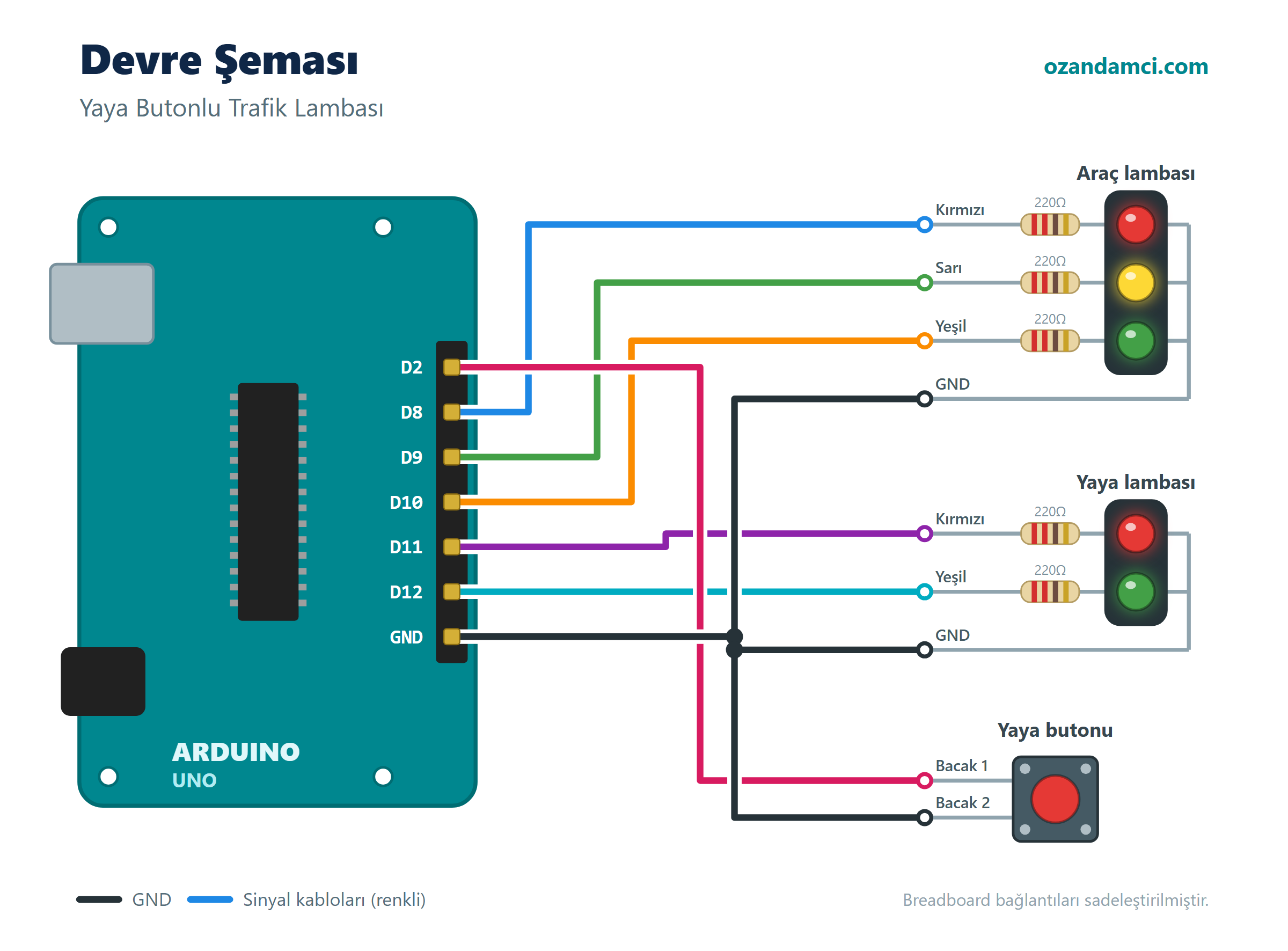
| Component | Connection | Arduino pin |
|---|---|---|
| Car red LED | Long leg (through 220 Ω) | D8 |
| Car yellow LED | Long leg (through 220 Ω) | D9 |
| Car green LED | Long leg (through 220 Ω) | D10 |
| Pedestrian red LED | Long leg (through 220 Ω) | D11 |
| Pedestrian green LED | Long leg (through 220 Ω) | D12 |
| All LEDs | Short legs | GND |
| Button | One leg | D2 |
| Button | Diagonally opposite leg | GND |
We don’t use an external resistor for the button; instead we turn on the Arduino’s internal pull-up resistor (INPUT_PULLUP).
Code
// Arduino Traffic Light with Pedestrian Button - ozandamci.comconst int carRed = 8;const int carYellow = 9;const int carGreen = 10;const int pedRed = 11;const int pedGreen = 12;const int buttonPin = 2;const unsigned long greenTime = 10000; // car green lasts 10 s if nobody presses the buttonvoid setup() { pinMode(carRed, OUTPUT); pinMode(carYellow, OUTPUT); pinMode(carGreen, OUTPUT); pinMode(pedRed, OUTPUT); pinMode(pedGreen, OUTPUT); pinMode(buttonPin, INPUT_PULLUP);}void lights(bool cr, bool cy, bool cg, bool pr, bool pg) { digitalWrite(carRed, cr); digitalWrite(carYellow, cy); digitalWrite(carGreen, cg); digitalWrite(pedRed, pr); digitalWrite(pedGreen, pg);}void loop() { // 1) Green for cars, red for pedestrians lights(LOW, LOW, HIGH, HIGH, LOW); unsigned long start = millis(); while (millis() - start < greenTime) { if (digitalRead(buttonPin) == LOW) { delay(1000); // short wait after the button is pressed break; } } // 2) Yellow for cars lights(LOW, HIGH, LOW, HIGH, LOW); delay(2000); // 3) Red for cars, green for pedestrians lights(HIGH, LOW, LOW, LOW, HIGH); delay(5000); // 4) Pedestrian green blinks as a warning for (int i = 0; i < 4; i++) { digitalWrite(pedGreen, LOW); delay(300); digitalWrite(pedGreen, HIGH); delay(300); } // 5) Red for pedestrians, red + yellow for cars (get ready) lights(HIGH, HIGH, LOW, HIGH, LOW); delay(1500);}
Step-by-step instructions
- Prepare the power rails. Connect the Arduino’s GND pin to the – rail of the breadboard.
- Place the car lights. Put the red, yellow and green LEDs one under the other. Connect a 220 Ω resistor to the long leg of each and wire them to D8, D9 and D10.
- Place the pedestrian lights. Put the red and green LEDs a little further along and connect them through resistors to D11 and D12.
- Connect the short legs of all LEDs to the – rail.
- Place the button. Put the button across the gap in the middle of the breadboard. Connect one leg to D2 and the diagonally opposite leg to the – rail.
- Upload the code. In the Arduino IDE, choose Arduino Uno and the right port from Tools → Board, then click Upload.
- Test it. Press the button while the car light is green. After one second the yellow light should turn on, followed by the pedestrian green.
Troubleshooting
- Nothing happens when I press the button: Make sure you are using diagonally opposite legs of the button. Legs on the same side may always be connected.
- One LED never lights up: The LED may be in backwards; the long leg must go to the Arduino pin.
Try it yourself
- Change the timings and add a night mode: at night only the yellow light blinks.
- Add a buzzer that beeps while the pedestrian light is green, to help visually impaired people.


Birisi “Arduino Traffic Light with Pedestrian Button (Parts List and Code)” üzerinde düşündü